9014. Online Judge - Import DataMulter and Fast-csv
Introduce how to upload data into MongoDB in Angular application.
1. Angular(Client)
1.1 UI
In the file ‘./src/app/components/admin/database.component.html’, create a button.
<div class="col-sm-2">
  <button type="button" [disabled]="loading || collection=='noselect'" class="btn btn-info" (click)="openModal(uploadDlg)"><i class="fa fa-file-excel-o"></i> Import with CSV</button>
</div>
And create a modal dialog for use to select the csv file to upload.
<ng-template #uploadDlg>
<form [formGroup]="uploadForm" enctype="multipart/form-data">
<div class="modal-header">
<h3 class="modal-title pull-left">Import Data</h3>
<button type="button" class="close pull-right" aria-label="Close" (click)="clearFile()">
<span aria-hidden="true">×</span>
</button>
</div>
<div class="modal-body">
<div class="form-group" style="padding:10px 50px;">
<h4>Select CSV File</h4>
<div class="input-group">
<span class="input-group-btn">
<button class="btn btn-default btn-choose" (click)="choose()" type="button">Choose</button>
<input type='file' id="upload" (change)="onFileChange($event)" style='visibility:hidden; height:0'>
</span>
<input type="text" readonly class="form-control" placeholder='Choose a file...' [value]="filename" />
<span class="input-group-btn">
<button type="button" class="btn btn-warning" (click)="clearFile()">Reset</button>
</span>
</div>
</div>
</div>
<div class="modal-footer">
<button type="submit" [disabled]="loading" class="btn btn-primary" (click)="confirm()">Upload</button>
<app-widget-loading-image [loading]="loading"></app-widget-loading-image>
<button type="button" class="btn btn-default" (click)="decline()">Cancel</button>
</div>
</form>
</ng-template>
1.2 Event Handler
In the file ‘./src/app/components/admin/database.component.ts’, add typescript code to open the ‘Upload File’ Dialog.
openModal(template: TemplateRef<any>) {
  this.modalRef = this.modalService.show(template, { class: "modal-md" });
}
choose() {
  var filectrl = <HTMLInputElement>document.getElementById("upload");
  filectrl.value = "";
  filectrl.click();
}
Also add code to handle the ‘submit’ event, which calls the service to upload file.
confirm(): void {
    if (!this.fileToUpload) {
      alert("No file has been selected!");
      return;
    }
    const formData = new FormData();
    // 'fileitem' must match with the backen api
    formData.append("fileitem", this.fileToUpload, this.fileToUpload.name); // file
    formData.append("name", this.collection); // collection name: users, questions.

    this.asyncBegin();
    this.databaseSerivce.importData(formData).subscribe(
      data => {
        this.alertService.success(
          this.collection + " have been successfully uploaded. "
        );
        this.asyncEnd();
        this.clearFile();
        this.getData(this.collection);
        this.modalRef.hide();
      },
      error => {
        this.handleError(error);
        this.clearFile();
        this.modalRef.hide();
      }
    );
  }
1.3 Http Service
In the file ‘./src/app/services/database.services.ts’, call the remote service to upload file.
importData(formData: any) {
  console.log(formData);
  return this.http.post(this.apiUrl + "/import", formData, {
    observe: "response"
  });
}
2. Express(Server)
2.1 Packages
We will use two libraries for uploading data to MongoDB, Multer and Fast-csv.
- Multer is a node.js middleware for handling multipart/form-data, which is primarily used for uploading files.
- Fast-csv is a library that provides CSV parsing and formatting.
npm install multer --save
npm install fast-csv --save
2.2 Router
Add router for import data in ‘./server/routes/database.js’.
router.post("/import", database_controller.collection_import);
2.3 Controller
Add import method in file ‘./server/controllers/database.js’.
var multer = require("multer");
var fastcsv = require("fast-csv");

...

eexports.collection_import = function(req, res, next) {
  SleepUtil.sleep();
  /*if (!req.files) {
    return res.status(400).send("No files were uploaded.");
  }*/

  var filepath = path.resolve(__dirname, "../", temp_directory);
  var filename = "";
  var storage = multer.diskStorage({
    //multers disk storage settings
    destination: function(req, file, cb) {
      //console.log(file);
      cb(null, filepath);
    },
    filename: function(req, file, cb) {
      var datetimestamp = Date.now();
      const originalname = path.parse(file.originalname).name; // users
      const extension = path.parse(file.originalname).ext; // .txt
      filename = originalname + "-" + datetimestamp + extension;
      console.log(filename);
      cb(null, filename);
    }
  });

  var upload = multer({
    //multer settings
    storage: storage
  }).single("fileitem");
  //.single("fileitem")

  upload(req, res, function(err) {
    if (err) return next(err);

    const name = req.body.name;

    console.log("collection:" + name);
    const fullpath = path.resolve(filepath, filename);

    console.log("Import data for collection:" + fullpath);
    FileApi.readFile(fullpath, (err, data) => {
      if (err) return next(err);
      var list = [];
      //console.log(data.toString());
      fastcsv
        .fromString(data.toString(), {
          headers: true,
          ignoreEmpty: true
        })
        .on("data", function(data) {
          console.log(data);
          data["_id"] = new mongoose.Types.ObjectId();
          list.push(data);
        })
        .on("end", function() {
          if (name == "users") {
            console.log("import users");
            User.create(list, function(err, documents) {
              if (err) return next(err);
              res.status(200).send(documents);
            });
          } else if (name == "questions") {
            console.log("import questions");
            Question.create(list, function(err, documents) {
              if (err) return next(err);
              res.status(200).send(documents);
            });
          } else {
            res.status(200).send();
          }
        });
    });
  });
};
2.4 Errors
Error 1:
{"error_code":1,"err_desc":{"code":"LIMIT_UNEXPECTED_FILE","field":"fileitem","storageErrors":[]}}
Solution: Check if the settings are correct, change file to fileitem.
var upload = multer({
  //multer settings
  storage: storage
}).single("file"); // must match the name at client side.
Error 2: If you get following error when using multer, check whether the folder defined in destination of multer exists.
{"error_code":1,"err_desc":{"errno":-2,"code":"ENOENT","syscall":"open","path":"uploads/fileitem-1530761053796.txt","storageErrors":[]}}
Use ‘path.join(__ dirname, …)’ to the the full path.
var filepath = path.join(__dirname, "./uploads/"); // make sure this folder exists
You see, the folder is in controller folder, create uploads folder in it or change to another existing folder.
{"error_code":1,"err_desc":{"errno":-2,"code":"ENOENT","syscall":"open","path":"/Users/Johnny/GitHub/online-judge-mean/server/controllers/uploads/fileitem-1530761500560.txt","storageErrors":[]}}
3. Testing
Start the app, login as admin, go to Database.
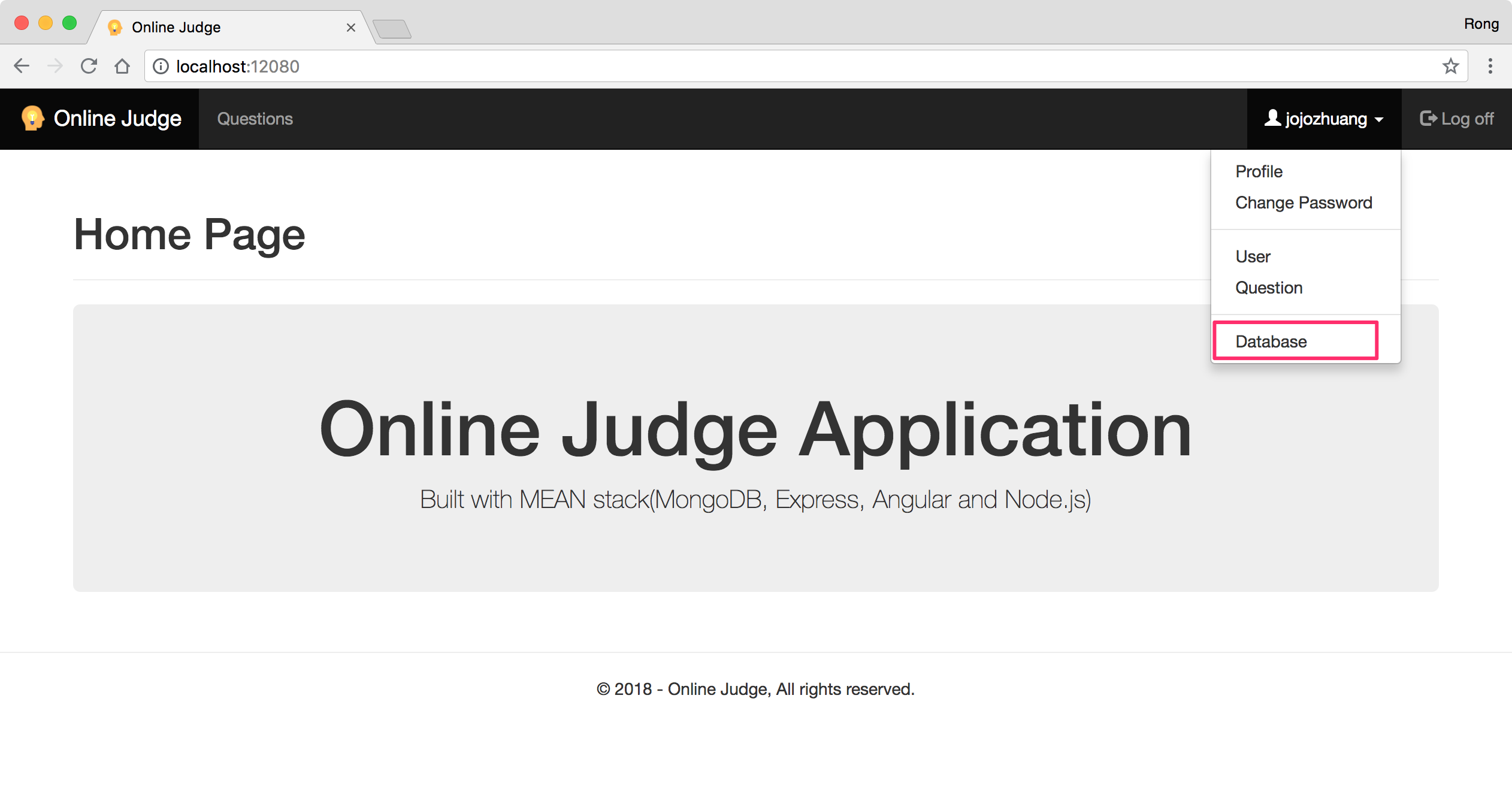 Choose collection ‘questions’. Delete all entries if they exist.
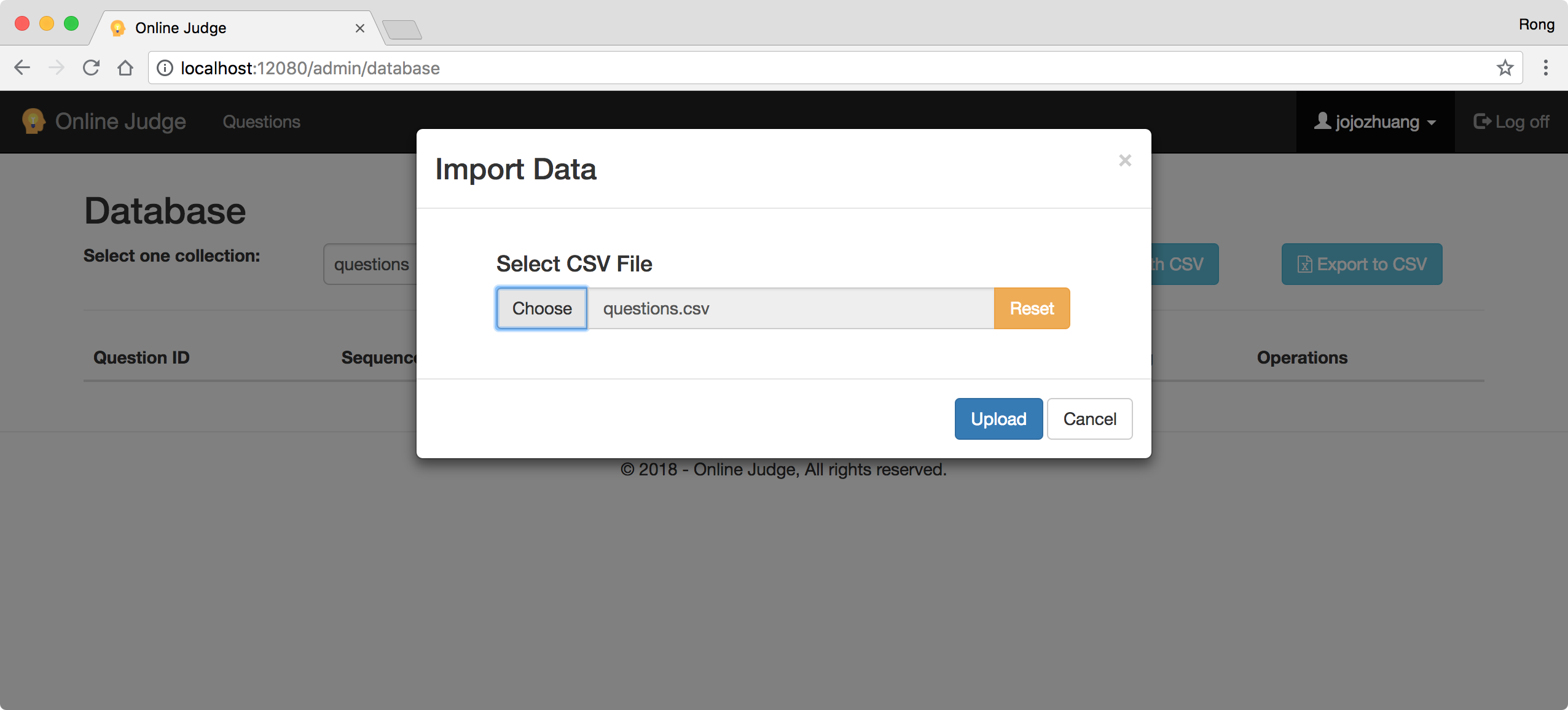
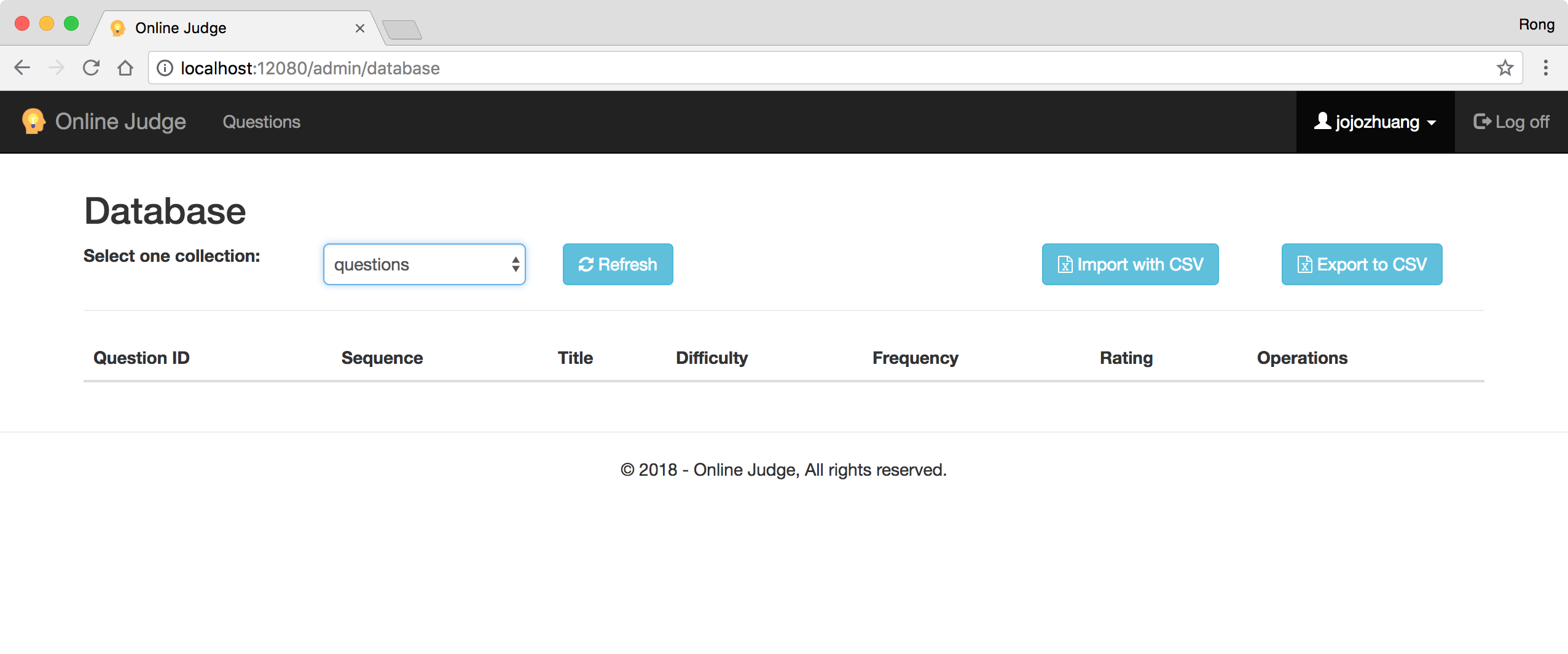 Click ‘Import with CSV’ button. A modal dialog will be displayed, choose questions.csv in ‘./backup_csv’ folder.
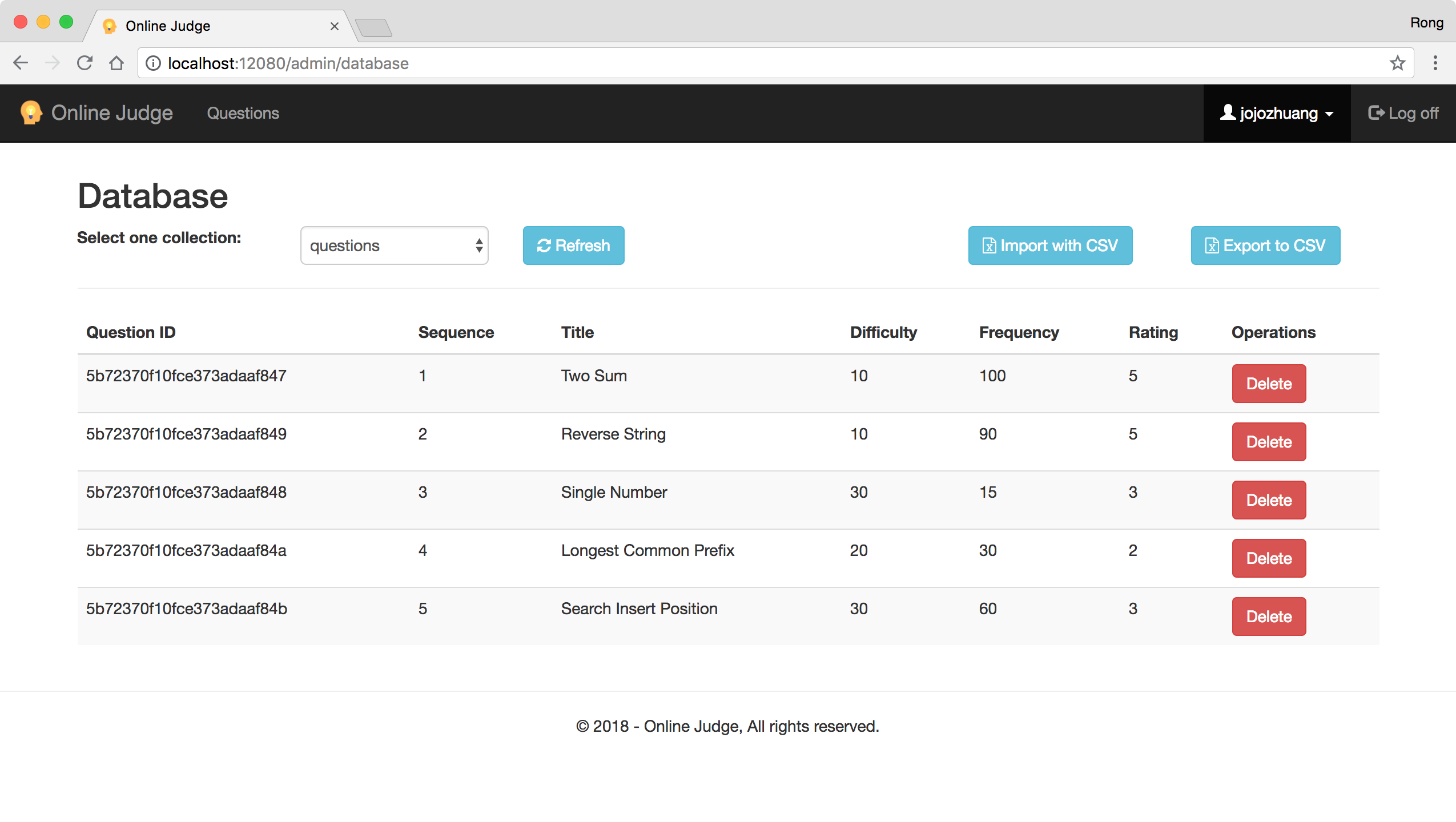
 Click ‘Upload’ button, all data in the csv file is uploaded to MongoDB.
4. References
- File Upload with AngularJS and NodeJS
- Sample code for file upload
- Angular File Uploads with an Express Backend
- Creating a File Upload Component in Angular (Including Backend)
- Uploading files in Angular (2/4) to a REST api
- File Upload with Angular
- Bulk Import a CSV File Into MongoDB Using Mongoose With Node.js
- Modal Dialogs